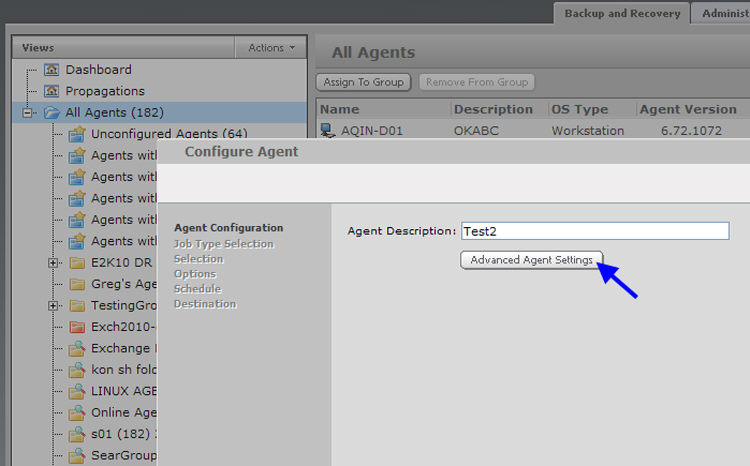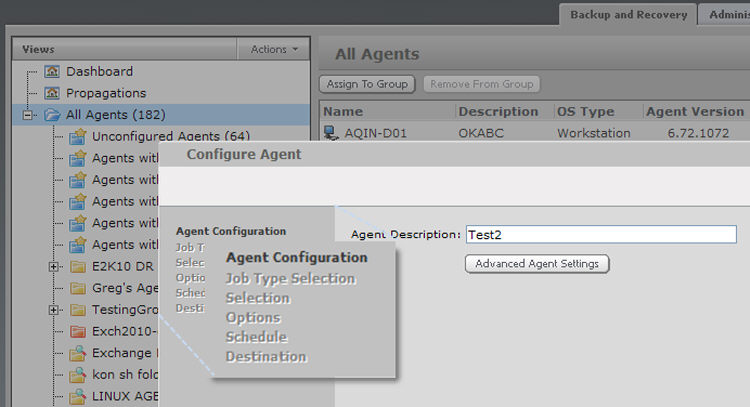
After you have selected the Agent that you want to configure, and clicked Configure This Agent, the Agent Configuration Wizard will pop up. (See also Desktop Agent Configuration.)
Follow the steps that appear on the left side of the screen:
As you finish each step in the Wizard, the step labels will change from grayed-out text to darker text. This shows you which steps are complete.
At any time, you can go back and make changes to your selections.
Agent Description: Enter a meaningful description for the Agent in this field.
Click Next to proceed.
This page also gives you access to Advanced Agent Settings.