
The Desktop Agent’s Configuration Wizard is designed to simplify the user experience as much as possible. Backup selections are simplified through the introduction of datasets. Datasets are made up of file locations and file types. Datasets can be predefined so that users can simply modify them.
Desktop Agent Wizard
After you have selected the Desktop Agent that you wish to configure, click "Configure This Agent". The Desktop Agent Configuration Wizard will pop up.

To create a Backup Job using the predefined datasets:
1. Select the datasets that you want to include, and then click “Next” to proceed. The Encryption Settings page will appear.
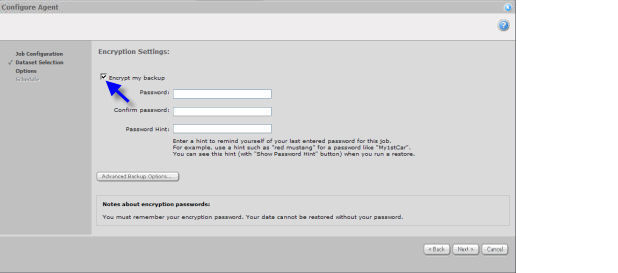
2. If you want to encrypt your backup, click the “Encrypt my backup” checkbox. Create and confirm an encryption password, and then enter a password hint.
3. If you want to adjust your logging options, click “Advanced Backup Options”.
4. Click “Next” to proceed to the scheduling screen.
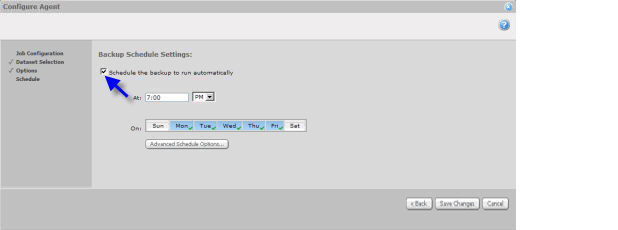
5. Select “Schedule the backup to run automatically", and then adjust the times and days for your schedule. To adjust your deferring options, or your Backup Time Window, click “Advanced Schedule Options”.
6. Click “Save Changes” to finish the Job configuration.
Note: If you have a Vault profile, it will be used for registration, and you will not be prompted for Vault registration information.
If, however, the Desktop Agent does not have a Vault profile, Web Agent Console will prompt you for information about the Vault to which you want to send the backup. To register to a Vault, you will need to enter a Vault name, IP address, and credentials. You can then click “Save Changes” to finish the Job configuration.