Power Management
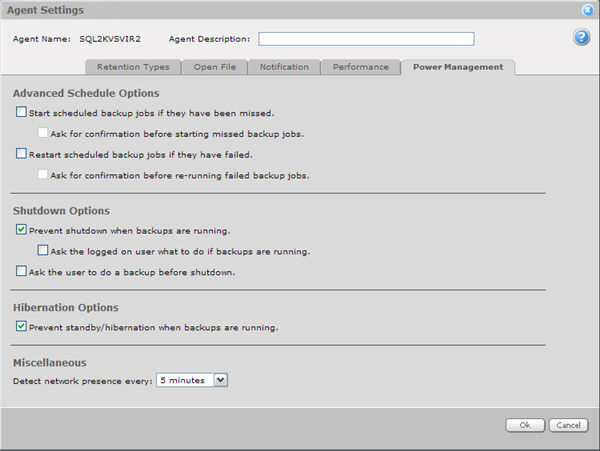
When the Agent Assistant is installed with an Agent, there are Power Management options available. The following screen allows you to specify what you want to happen regarding backups if:
They have been missed, or failed
The system attempts to shut down
The system attempts to hibernate
The system detects a network loss/presence
For Windows Vista and above, some of these options are not active.
Overview of Standby and Hibernation
Desktop Agent users should NOT enable hibernation or standby on their desktop or laptop computers. If the computer is powered down, or off, backups will not occur at the scheduled times.
If, however, the computer has been powered off (or put into hibernate or standby mode), you can configure it to automatically start or restart scheduled backup Jobs if they were missed or failed to run. This will occur when the computer is powered on/up. You can log off, but the computer must continue to run the operating system (and stay connected to the network) for the backups to proceed properly.
The most important power-management functions for Windows desktop and laptop computers are Hibernate and Standby. Standby and Hibernate both save you from having to log off and shut down to save power when you stop using your computer for a few minutes, a few hours, or longer.
Hibernation is almost a complete shutdown. When a computer goes into hibernation, Windows saves your desktop state with all open files and documents before powering down your computer. You don’t need to save and close each document before you put your computer into hibernation. To start working again, simply press the power button and log on normally. Your computer starts more quickly because it skips steps such as cache cleanup. When Windows brings your computer out of hibernation, you will find your documents and files open on your desktop, exactly as you left them.
Unlike hibernation, standby does not automatically save your data before powering down your computer. Save your documents before putting the computer on standby.
Note: Unlike servers, which typically run all of the time (performing backups as scheduled), laptop and desktop computers can be shut down or put into standby/hibernation. The advanced options on this page allow you to ensure that if a backup is scheduled to run (and you don’t cancel it), the backup will complete, even if you stop the computer. This also assumes that you have enabled the Advanced Schedule Options for starting missed Jobs/restarting failed Jobs.
Advanced Schedule Options
You have two choices when deciding how to handle scheduled backups that may have been missed or failed. This is usually due to Hibernation or Standby being on, a network outage, or powering off the computer (i.e., a shutdown).
1. “Start scheduled backup jobs if they have been missed.”
If this box is checked, the scheduler will attempt to start any backups that are still waiting to run.
Note: If backup schedules overlap, only the last one will have its status reported.
2. “Restart scheduled jobs if they have failed."
If any backup Jobs have started, but failed to finish (because of network failure or the computer shutting down), those Jobs will be started again.
In either of these cases, you may choose to be prompted (asked for confirmation) before the backup Jobs start or re-run.
Note: If the same Job has been missed several times in a row, only one occurrence of it will run when the backup does occur. So, for example, if you have a backup (the same Job) scheduled for midnight every day, and your computer is off for three days, you will only get one “missed and re-run" backup (rather than three).
Shutdown Options
“Prevent shutdown when backups are running.”
This checkbox, when set, prevents the computer from going into shutdown mode if there are backup Jobs running. The next time the shutdown tries to run, and there is no backup running, the shutdown will proceed.
“Ask the logged on user what to do if backups are running.”
This second checkbox – which depends on the first one being set – prompts the user at the time of shutdown.
“Ask the user to do a backup before shutdown.”
This checkbox prompts to see if the user wants to do a backup before the system shuts down. This option does not depend on the contents of the first checkbox.
Hibernation Options - Prevent standby/hibernation when backups are running
Check this box to prevent the computer from going into sleep or hibernation mode if there are backup Jobs running. When the standby/hibernation next tries to run, and there is no backup running, the standby or hibernation will occur.
Miscellaneous - Detect network presence
If there is a network outage, the Agent pauses the scheduler. It resumes when the network comes back up. By checking for a valid network, you ensure that missed or failed backups will still occur. This assumes that you have chosen the Advanced Schedule Options for starting or restarting the schedule after missed or failed backups. See the preceding sections.
You can check for network presence every 1 minute, 5 minutes, or 10 minutes. You can also choose not to check at all (the "Never" option).
"Never" means that the Agent is not notified of any network outage, so backups may be missed. That is, the Desktop Agent will fail the backup, and there is nothing to tell it to retry. The “Never” choice is normally used for troubleshooting.
You can choose to check for network availability every 1, 5, or 10 minutes. If a backup does fail because of a network outage, the backup can be restarted (if you have the Advanced Schedule Options missed/failed fields checked). Normally, every 5 minutes is a good choice. It does not require much overhead on the system, and it means that your backups can start/continue when the network presence is detected.
The Agent Assistant system tray icon will change to Disconnected (i.e.,  ) if the network connection is lost for longer than the period defined.
Agent Assistant
On the local Agent, you can be notified regarding the status of your backups (and network status) by the Agent Assistant system tray icon:
 Ready: This is the normal state. The Agent is operational and ready to perform scheduled backups.
 Processing: The Agent is currently running a backup.
 Not Ready: This icon may appear if there is a warning message that takes priority (e.g., for a failed or missed backup).
Disconnected: This icon appears if the Agent is not online or ready, or if the network is not accessible.
If you “hover” the mouse pointer over the system tray icon, the current status of the Agent will display.