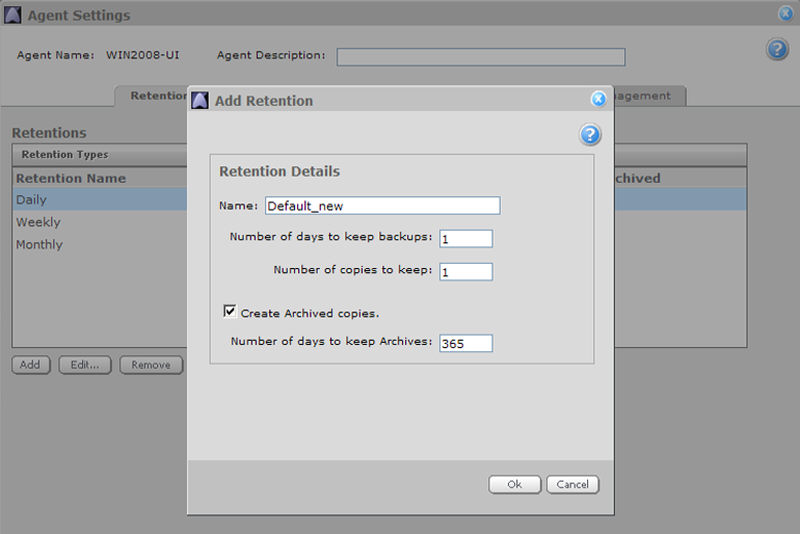
To manually add or edit a Retention, see the steps below.
To manually add or edit a predefined retention from the Agent Settings:
1. On the Retention Types tab, click Add (or select a retention name, and then click Edit).
2. Change the Retention Details as required:
Name: The name of the retention can be edited. Retention names can be up to 32 alphanumeric characters in length. No spaces are allowed. Names are not case sensitive. Underscores (_) and dashes (-) may be used.
The number of days and number of copies can be modified. The number of days can range from 1 to 9999, and the number of copies can range from 1 to 999.
Archive: Choose whether you want to archive your data. Data can be archived from 0 to 9999 days. This number defines the number of days a backup will be maintained on removable media at the vault before it expires and is deleted. If you would like to archive data, discuss this with your service provider.
3. Click Ok when you have finished.
Note: Changing a retention definition affects only the retention number and its application to future (yet to be created) backups. If you wish to keep older backups for a longer period of time, you cannot simply increase the retention setting because that will not apply to previous backups -- only to future backups. (You can, however, call your Vault Service Provider to manually arrange to keep previous backups longer.)